
Introduction
If you are searching for Typing club login, you probably want to get into TypingClub quickly so you can start a lesson, continue your practice, check your progress, or access a school assignment.
The important thing to know is that there is not one universal login process for every TypingClub user. Students and teachers using a school account normally sign in through their school’s unique TypingClub or edclub portal. Depending on how the school configured the account, users may sign in with a username and password or through Google, Microsoft 365, Clever, or ClassLink.
TypingClub itself is a web-based typing program, and its individual version can be used without creating an account. An optional profile can be created to save progress. School users, however, normally access their school’s customized portal.
This guide explains how TypingClub login works, where to sign in, what to do if you forgot your password, and how to solve common access problems.
What Is TypingClub Login?
TypingClub login is the process of accessing your TypingClub account so you can use your lessons, assignments, progress information, or other features available to your account.
TypingClub is part of the edclub product family. For school accounts, the school or district creates a customized portal that acts as the main entry point for teachers and students. The portal may look similar to:
The exact address depends on the school or organization.
TypingClub’s documentation specifically warns that school users should use their unique school login URL rather than trying to sign in to the main TypingClub website with school credentials.
How to Log In to TypingClub
The correct login steps depend on whether you are using an individual account or a school-managed account.
Step 1: Find Your TypingClub School Portal
If your school uses TypingClub, first find the unique login address provided by your teacher, school, or district.
A school portal can use a customized address based on the school’s name, class, or district. TypingClub’s support documentation gives the general format as a customized school URL.
Your teacher may have provided the address through:
- Google Classroom
- A school website
- A class assignment
- An email
- A printed login card
- A class instruction sheet
- Your school’s learning management system
If you cannot find the address, ask your teacher or school administrator for the correct TypingClub login URL.
Step 2: Open the School Login Page
Enter your school’s TypingClub or edclub portal address into your browser.
Do not assume that the main TypingClub homepage is the correct login page for your school account. School accounts are connected to their customized portal.
Step 3: Choose Your Login Method
Your school may give you one or more ways to sign in.
Common options include:
- Username and password
- Email and password
- Microsoft 365
- Clever
- ClassLink
The available options depend on how the school’s account has been configured.
Step 4: Enter Your Account Details
If your school uses a traditional login, enter the username or email address and password assigned to you.
If your school uses single sign-on, select the appropriate option and follow the prompts from Google, Microsoft 365, Clever, or ClassLink.
Step 5: Start Your Typing Lessons
After successful sign-in, you should reach the student interface associated with your account.
Your available lessons, classes, assignments, and progress depend on how your school or teacher has configured your account.
Why Can’t I Log In to TypingClub?
The most common reason a school user cannot log in is using the wrong portal URL.
TypingClub explains that every school account has its own login URL. Attempting to use the main TypingClub website with school account credentials will not work for those school accounts.
Other common causes include:
- Incorrect username or email
- Incorrect password
- Choosing the wrong sign-in method
- Using the wrong school portal
- Not being added to the school account
- Not being enrolled in the expected class
- A Google or Microsoft account mismatch
- A school account configuration issue
The best troubleshooting approach is to check these possibilities in order instead of repeatedly entering the same password.
How to Find Your TypingClub Login URL
If you do not know your school’s login URL, check the information supplied by your teacher or school.
The address is normally customized for the school or district. TypingClub’s documentation describes school portals using addresses such as schoolname.edclub.com.
Ask Your Teacher
For students, the teacher is often the quickest source of the correct portal address.
Teachers may share the login page through a classroom platform, assignment, email, or printed instructions.
Check Google Classroom
If your school uses Google Classroom with TypingClub, the teacher may post a link to the school’s unique portal.
TypingClub documents Google Classroom as one of the ways schools can organize classes and provide students with access to their portal.
Check Your School’s Instructions
Some schools provide login cards or written instructions containing the login URL and account information.
TypingClub also provides tools that allow teachers to generate student login cards and email login instructions.
How to Use Google for TypingClub Login
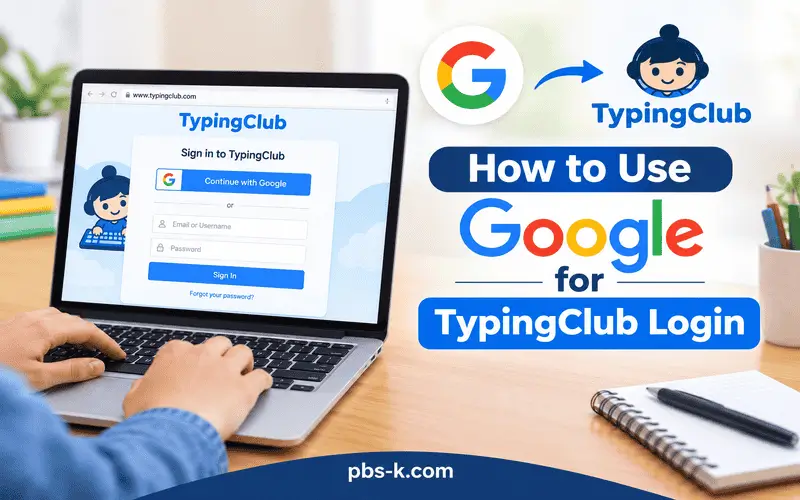
Some TypingClub school accounts support Google single sign-on.
When Google login is enabled and the student’s Google email address has been associated with the TypingClub profile, the student can select the Google sign-in option on the school’s portal. TypingClub says students do not need a separate TypingClub password when using Google single sign-on.
A typical process is:
- Open your school’s TypingClub portal.
- Select the Google sign-in option.
- Choose or enter the correct Google account.
- Complete Google’s authentication process if requested.
- Return to the TypingClub student interface.
What If Google Login Does Not Work?
First, check that you are using the Google account associated with your TypingClub profile.
For school-managed accounts, using a personal Google account when the school expects your school Google account can cause an account mismatch.
If the correct Google account still does not work, contact your teacher or school administrator because the problem may involve how your student profile was created or configured.
How to Use Microsoft 365 for TypingClub Login
Some school accounts allow students and teachers to sign in through Microsoft 365.
TypingClub’s documentation says Microsoft 365 single sign-on can be enabled for a school account, with the user’s Microsoft 365 email address associated with the profile. Students do not necessarily need separate email access to use Microsoft 365 single sign-on.
If this option is available:
- Open your school’s TypingClub portal.
- Select Microsoft 365.
- Sign in using the Microsoft account connected to your school profile.
- Complete any authentication steps.
- Continue to your TypingClub account.
If you have multiple Microsoft accounts open in the same browser, make sure you select the account provided by your school.
What If You Forgot Your TypingClub Password?
The recovery process depends on whether you are a student or teacher and how your school account is configured.
Students
TypingClub states that students who forget their passwords may be able to reset them if the school’s administrator has enabled that option. Otherwise, students should contact their teacher for assistance.
Do not repeatedly guess passwords if your school manages your account. Asking your teacher for the correct login method can be faster.
Teachers
Teachers can use the password reset option on their school’s login page when available.
TypingClub’s instructor documentation also explains that administrators can manage instructor passwords and that instructors can change their own passwords through their account settings.
TypingClub Login for Teachers
Teachers normally access the same customized school or district portal associated with their account.
According to TypingClub, instructors sign in with their email address and password, while some school configurations also support single sign-on through services such as Google, Microsoft 365, Clever, or ClassLink.
A teacher who has not yet been added to an existing school account generally needs the school or district administrator to add them. Teachers cannot simply add themselves to an existing school account.
TypingClub Login for Students
Students need to use the login method assigned to their profile.
Depending on the school’s setup, this could be:
| Login method | What the student may need |
|---|---|
| Username and password | Assigned username and password |
| Email and password | School email and password |
| School Google account | |
| Microsoft 365 | School Microsoft account |
| Clever | School’s Clever access |
| ClassLink | School’s ClassLink access |
Not every school provides every option. The available methods depend on the school’s TypingClub configuration.
What Is a TypingClub Class Code?
A class code can help students join an account or enroll in a particular class.
TypingClub explains that teachers can enable class codes for individual classes. Students can then enter the code from the school’s portal to join the appropriate class.
A class code is different from your normal password.
It is primarily used to join an account or class, depending on how the teacher has configured it.
Can a Class Code Create a New Account?
Yes, depending on the setup.
TypingClub documents a process in which students can visit their school’s unique URL, choose the class-code option, enter the code, and create or connect their account using available registration methods.
Once the account has been created, students should return to the school’s normal login URL for future access. TypingClub warns that repeatedly using a join-class process can potentially result in duplicate profiles.
TypingClub School Login vs. Main Website
This is one of the easiest parts of the system to misunderstand.
| Situation | What to use |
|---|---|
| You are learning independently | TypingClub’s main website |
| You are a student in a school account | Your school’s customized portal |
| You are a teacher | Your school’s customized portal |
| Your school uses Google SSO | School portal plus Google |
| Your school uses Microsoft 365 SSO | School portal plus Microsoft |
| You have a class code | School portal and the class-code process |
TypingClub’s main website is available for individual learners, while school users have customized portals connected to their school’s account.
How to Fix Common TypingClub Login Problems
If TypingClub login is not working, use this checklist.
1. Check the Website Address
Make sure you are using the portal supplied by your school.
This is especially important if you previously bookmarked another TypingClub page.
2. Check Your Login Method
If your teacher told you to use Google, do not try to create a separate TypingClub password unless instructed to do so.
Likewise, if your account uses a username and password, selecting a different SSO method may not connect to the correct profile.
3. Check Your Account
A student must be registered with the school’s account and enrolled appropriately before accessing school lessons. TypingClub lists account registration and class enrollment among the common areas to check when students cannot access their work.
4. Check for Multiple Google or Microsoft Accounts
If you have multiple accounts signed in, you may accidentally choose a personal account instead of the account associated with your school profile.
5. Contact Your Teacher
If the URL and login method are correct but access still fails, your teacher can check your student profile and login information.
6. Ask the School Administrator
For account-level problems, the school administrator may need to check the account configuration, user profile, or authentication settings.
How Parents Can Help With TypingClub Login
Parents helping a student should first determine whether the child has an individual TypingClub profile or a school-managed account.
If it is a school account, ask the child for:
- The school or class name
- The login URL provided by the teacher
- The expected login method
- Whether the account uses Google or Microsoft
- Whether a class code was recently provided
Avoid creating a new account immediately if the student already has a school profile. A new profile may not contain the student’s existing lessons or school assignments.
Does TypingClub Require an Account?
Not always. TypingClub’s main website says users can practice without creating an account. However, an optional profile can be created to save progress. School users operate differently because their accounts are managed through the school’s TypingClub or edclub portal.
This distinction explains why an individual learner may be able to start practicing directly while a student completing school assignments is asked to use a specific portal and login method.
Is TypingClub Free?
TypingClub states that its typing program is free for individuals and schools, while an optional paid school edition is available. The company’s current website describes TypingClub as web-based and identifies the paid school edition as an optional offering.
The exact features available to a school user can depend on the edition and account configuration.
What Happens After You Log In?
Once you successfully access your account, the experience depends on your account type.
A student may see:
- Assigned typing lessons
- Courses
- Progress information
- Typing practice
- Class-related activities
- Goals or other features enabled by the school
Teachers have additional tools for managing students, classes, courses, and progress.
The purpose of the customized school portal is to connect the user’s login with the correct school account and permissions.
Tips for a Smoother TypingClub Login
A few simple habits can prevent repeated login problems:
- Bookmark your school’s login page.
- Use the same school account consistently.
- Do not share your password with classmates.
- Remember whether you use Google, Microsoft, or a username and password.
- Keep your school-provided login instructions somewhere accessible.
- Ask your teacher before creating a second account.
- If you receive a class code, follow the teacher’s instructions for using it.
- If you change schools or classes, confirm which account and portal you should use.
For younger students, saving the correct portal as a browser bookmark can be particularly useful.
Conclusion
TypingClub login is usually straightforward once you know which account and portal you are supposed to use. For school users, the customized school URL is the key starting point. From there, follow the login method your school has configured.
If you are having trouble, avoid creating another account right away. Check the portal address, confirm your login method, and ask your teacher or administrator to verify your student profile when necessary.
FAQs
How do I log in to TypingClub?
If you use TypingClub through school, open your school’s unique TypingClub or edclub portal and sign in using the method provided by your school. This may be a username and password or a single sign-on option such as Google or Microsoft 365.
What is my TypingClub school login URL?
Your school has a customized login address. It may follow a format such as schoolname.edclub.com. Ask your teacher or school administrator if you do not know the exact address.
Why can’t I log in to TypingClub?
Check that you are using the correct school portal and the correct login method. If your details are correct but access still fails, your account may need to be checked by your teacher or school administrator.
Can I use Google to log in to TypingClub?
Yes, Google single sign-on can be available for school accounts when the administrator has enabled it and your Google email address is associated with your profile.
Can I use Microsoft 365 to log in to TypingClub?
Yes. Microsoft 365 single sign-on can be enabled by a school administrator. Your Microsoft 365 email address must be associated with the appropriate TypingClub profile.
What should I do if I forgot my TypingClub password?
Students may be able to reset their password if the school permits it. Otherwise, TypingClub recommends contacting the teacher. Teachers can use the password-reset process available on their school’s login page.
What is a TypingClub class code?
A class code is a code provided by a teacher that can allow students to join an account or enroll in a particular class, depending on the school’s configuration.
Do I need a TypingClub account?
Individual users can practice on TypingClub without creating an account, although an optional profile can save progress. Students using a school account generally have a school-managed profile.
Is TypingClub free?
TypingClub’s website states that the core program is free for individuals and schools, with an optional paid school edition.
Is TypingClub the same as edclub?
TypingClub is part of the edclub product family. School documentation may therefore refer to an edclub portal or account even when students are using TypingClub for typing practice.
External Sources
TypingClub official website — general information about TypingClub and individual use.
TypingClub student login options — official documentation covering school URLs and available login methods.