
Introduction
Knowing your computer’s specifications can help you understand its performance, install compatible software, choose the right games, and decide whether an upgrade is necessary. Whether you use a desktop computer or a laptop, you can find most important hardware details without opening the device or installing additional software.
If you are wondering how to check PC specs, Windows provides several built-in tools that make the process straightforward. You can use Settings to view basic information, Task Manager to check hardware performance, and System Information to explore more detailed specifications.
This guide explains how to check your PC specifications in Windows 10 and Windows 11, including your processor, RAM, graphics card, storage, Windows version, and other important details.
How to Check PC Specs Quickly
The easiest way to check your basic computer specifications is through Windows Settings.
Follow these steps:
- Press Windows + I to open Settings.
- Select System.
- Scroll down and select About.
- Look under Device specifications to find your processor, installed RAM, device name, and system type.
- Check Windows specifications to find your Windows edition and version.
The exact layout may vary slightly between Windows versions, but the About page is a convenient starting point.
For more detailed information, use System Information or Task Manager. Microsoft provides additional instructions in its guide to finding information about your Windows device.
How to Check PC Specs in Windows 11
Windows 11 includes several built-in ways to inspect your computer’s hardware and software.
Method 1: Use Settings
This method is ideal for beginners who need basic information.
- Open the Start menu.
- Select Settings.
- Click System.
- Select About.
- Review the Device specifications and Windows specifications sections.
You can find the processor model, installed RAM, system type, Windows edition, and other basic details here.
For example, you might see a processor name such as Intel Core i5, 16 GB of installed RAM, and a 64-bit operating system. These details help you identify your computer’s general capabilities, although the processor’s exact model and generation are important when comparing performance.
Method 2: Open System Information
System Information provides a more comprehensive view of your computer.
- Press Windows + R.
- Type
msinfo32. - Press Enter.
- Review the System Summary section.
You can find information about the system manufacturer, computer model, processor, installed memory, BIOS, and system architecture.
The Components section provides additional information about hardware devices, including display-related components.
This method is particularly useful when troubleshooting a computer, identifying a device model, or preparing information for technical support.
Method 3: Check Task Manager
Task Manager is helpful when you want to see hardware details alongside current resource usage.
- Press Ctrl + Shift + Esc.
- Select the Performance tab.
- Choose CPU, Memory, Disk, or GPU from the sidebar.
Depending on your hardware and Windows version, you can see the processor model, CPU utilization, memory capacity and usage, disk type, and graphics processor information.
Task Manager is especially useful when your computer feels slow. It helps you determine whether the processor, memory, or disk is under heavy load.
How to Check PC Specs in Windows 10
Windows 10 users can use similar built-in tools to find their computer’s specifications.
Check the About Page
- Open the Start menu.
- Click Settings.
- Select System.
- Scroll down and choose About.
- Review Device specifications and Windows specifications.
This page displays basic hardware details and information about the installed operating system.
Use the Run Command
You can also use the Run dialog to open a detailed system report.
- Press Windows + R.
- Enter
msinfo32. - Press Enter.
The System Information window opens with a summary of your hardware and software configuration.
Another useful command is dxdiag. Enter it in the Run dialog to open the DirectX Diagnostic Tool, which provides system and display information useful for diagnosing graphics and multimedia issues.
Important: Microsoft ended standard support for Windows 10 on October 14, 2025. If your computer still runs Windows 10, consider checking its eligibility for Windows 11 or reviewing Microsoft’s available extended security update options.
How to Check Your Processor (CPU)
The central processing unit, or CPU, handles instructions and calculations that allow programs and the operating system to work.
To check your processor:
- Open Settings.
- Select System, then About.
- Find the Processor entry under Device specifications.
Alternatively, open Task Manager and select Performance, then CPU.
Record the complete processor name rather than just its brand or product family. For example, two processors with the same Intel Core i5 or AMD Ryzen 5 label may have significantly different performance because of differences in generation, architecture, power limits, and core configuration.
What Processor Details Matter?
When reviewing your CPU specifications, pay attention to:
- Model name: Identifies the specific processor.
- Core count: Indicates how many processing cores the CPU has.
- Thread count: Shows how many processing threads it supports.
- Clock speed: Usually displayed in GHz, with actual speeds changing according to workload and power conditions.
- Architecture: Helps determine software compatibility.
A higher clock speed or larger core count does not automatically mean a processor is faster in every task. Performance depends on the workload and the processor’s overall design.
How to Check RAM on Your PC
Random access memory, commonly called RAM, temporarily stores data that active programs need.
To check installed RAM in Windows:
- Press Windows + I.
- Select System.
- Open About.
- Find Installed RAM under Device specifications.
You can also open Task Manager, select Performance, and click Memory.
Task Manager provides additional details, such as memory currently in use and available memory. Depending on the system, it may also display memory speed, slots used, and other hardware information.
How Much RAM Does Your PC Have?
The following examples help explain common memory capacities.
- 4 GB RAM: Limited for modern multitasking and demanding applications.
- 8 GB RAM: Often sufficient for basic browsing, office work, and everyday tasks.
- 16 GB RAM: A practical capacity for many modern users, including multitasking and a range of games.
- 32 GB RAM or more: Useful for heavier workloads, virtual machines, professional editing, and other memory-intensive tasks.
These are general guidelines, not strict requirements. The best amount of RAM depends on your operating system, applications, workload, and upgrade budget.
Also, installed RAM is not always the same as usable memory. Some memory may be reserved for hardware, and integrated graphics can share system memory.
How to Check Your Graphics Card (GPU)
The graphics processing unit, or GPU, handles graphics-related work. It is important for gaming, video editing, 3D applications, and some AI workloads.
There are several ways to identify your graphics card.
Use Task Manager
- Press Ctrl + Shift + Esc.
- Open the Performance tab.
- Select GPU 0 or another listed GPU.
- Read the graphics processor name.
If your computer has more than one GPU, Task Manager may display multiple entries.
Use Device Manager
- Right-click the Start button.
- Select Device Manager.
- Expand Display adapters.
- Read the name of each listed graphics device.
This is a quick way to identify your graphics hardware.
Use DirectX Diagnostic Tool
- Press Windows + R.
- Type
dxdiag. - Press Enter.
- Open the Display or Render tab, if available.
- Check the device name and other graphics details.
The available tabs depend on your hardware and drivers.
Integrated vs. Dedicated Graphics
An integrated GPU is built into a processor or system-on-chip and commonly shares system memory. A dedicated GPU is a separate graphics processor with its own resources, often including dedicated video memory.
Some computers have both. Laptops, for example, may use integrated graphics for everyday tasks and switch to a dedicated GPU for demanding applications.
When checking whether a game will run, identify the exact GPU model and its dedicated video memory where applicable. The graphics card’s name alone does not guarantee that a game will perform well.
How to Check Storage Capacity and Available Space
Storage holds your operating system, applications, games, documents, and other files.
To check storage space:
- Open Settings.
- Select System.
- Click Storage.
- Review the space used and available on your drive.
In Windows 11, you can also open Advanced storage settings and select Storage used on other drives to inspect additional drives.
To identify your disk through Task Manager:
- Open Task Manager.
- Select Performance.
- Choose Disk 0 or another listed disk.
- Review the available drive details.
Task Manager may identify whether a drive is an SSD or HDD, depending on the hardware and Windows configuration.
SSD vs. HDD
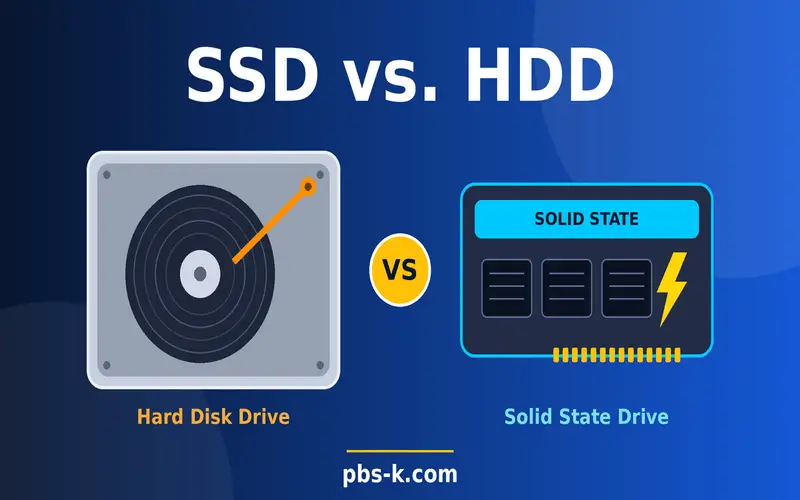
An SSD, or solid-state drive, generally provides faster loading and file access than a traditional HDD, or hard disk drive. This can make a noticeable difference in startup time and application responsiveness.
When reviewing storage, distinguish between the drive’s total capacity and its available free space. A computer advertised with a 512 GB drive will not have the entire capacity available for personal files because the operating system, recovery partitions, and formatting use some space.
How to Check Your Motherboard and BIOS Information
If you are planning a hardware upgrade, you may need to identify your motherboard or BIOS version.
To find basic motherboard information:
- Press Windows + R.
- Type
msinfo32. - Press Enter.
- Look for BaseBoard Manufacturer, BaseBoard Product, and BIOS Version/Date.
Some computers display complete motherboard details, while others show limited information. This is common with branded desktops and laptops that use custom hardware configurations.
If the motherboard model is missing or unclear, check your computer manufacturer’s support page using the exact device model. For a custom-built PC, consult your purchase records or the motherboard manufacturer’s documentation.
Before upgrading hardware: Confirm compatibility with your exact computer or motherboard model. A processor socket alone does not guarantee CPU compatibility, and RAM compatibility can depend on supported memory types, capacity, and firmware.
How to Check Your Windows Version and System Type
Knowing your Windows version is important when installing applications, updating drivers, or checking software compatibility.
Check the Windows Version
- Press Windows + R.
- Type
winver. - Press Enter.
A window will display your Windows edition and version information.
For additional details, open Settings, select System, and choose About. Under Windows specifications, you can review the edition, version, installation date, and OS build.
Check Whether Your PC Is 32-Bit or 64-Bit
Open Settings, select System, and choose About. Look for System type under Device specifications.
This section identifies the operating system architecture and provides processor-related architecture information.
Most modern Windows PCs use a 64-bit operating system. However, checking the actual system type is important when installing older applications or drivers that have specific compatibility requirements.
How to Check PC Specs for Gaming
If you want to play a particular game, checking your specifications can help you determine whether your computer meets its hardware requirements.
Follow this process:
- Find the game’s minimum and recommended system requirements on its official store or publisher website.
- Check your CPU using Settings or Task Manager.
- Check installed RAM through Settings or Task Manager.
- Identify your GPU through Device Manager or Task Manager.
- Check available storage through Settings.
- Confirm your Windows version and any required graphics technologies.
- Compare your results with the game’s requirements.
Minimum vs. Recommended Requirements
Minimum requirements describe the baseline hardware and software configuration specified by the developer for running a game. They do not necessarily promise smooth performance at high graphics settings.
Recommended requirements generally describe a more capable setup intended to provide a better experience, although the exact meaning varies by developer.
For example, if a game requires 16 GB of RAM and a particular graphics card, having 16 GB of RAM alone does not establish compatibility. Your processor, GPU, operating system, storage space, and other requirements also matter.
Check the exact graphics card model rather than relying only on its memory capacity. Two GPUs with the same amount of video memory can have very different performance.
Best Built-In Tools for Checking PC Specs
Different Windows tools serve different purposes.
| Tool | Best for | Information available |
|---|---|---|
| Settings > About | Quick checks | Processor, RAM, Windows details, system type |
| Task Manager | Performance and hardware overview | CPU, memory, GPU, disk activity |
System Information (msinfo32) | Detailed system report | Hardware, BIOS, system model, components |
DirectX Diagnostic Tool (dxdiag) | Graphics troubleshooting | Graphics devices, drivers, DirectX information |
| Device Manager | Identifying hardware devices | Display adapters, processors, and other device categories |
| Settings > Storage | Disk space | Used and available storage |
For most everyday users, Settings is the simplest place to start. Use System Information when you need more detailed hardware data, and Task Manager when you want to understand how your PC is performing at that moment.
How to Save or Share Your PC Specifications
If you need to send your computer details to a technician, software developer, or support team, Windows includes options for collecting system information.
Save a DirectX Diagnostic Report
- Press Windows + R.
- Type
dxdiag. - Press Enter.
- Select Save All Information.
- Choose a location and save the text file.
This report includes system and graphics information that can help with troubleshooting.
Generate a System Information Report
You can also open System Information by entering msinfo32 in the Run dialog.
Depending on your needs, you can save the report using the File menu. Microsoft also documents command-line options for exporting system information to an NFO or text file.
Before sharing a report publicly, review it for personal or device-identifying information. System reports can contain details you may not want to post on an open forum.
Common Problems When Checking PC Specifications
Sometimes a computer does not display every detail clearly. These tips can help.
The Graphics Card Name Is Missing
Open Device Manager and expand Display adapters. If the device appears as a basic display adapter or an unknown device, the appropriate graphics driver may not be installed or recognized.
Check Windows Update or your PC manufacturer’s official support page for a compatible driver. Avoid downloading drivers from unfamiliar websites.
Installed RAM and Usable RAM Differ
Windows may report slightly less usable memory than the installed amount. Hardware reservations, integrated graphics, and system configuration can account for the difference.
If the gap is unusually large, check whether all memory modules are detected and whether the computer supports the installed configuration.
System Information Does Not Show the Motherboard Model
Some manufacturers do not expose complete motherboard details through Windows. Use the computer’s exact model number and the manufacturer’s documentation to confirm the hardware.
You Cannot Find Your Laptop’s Exact Model
Look under Settings > System > About or open System Information and check System Manufacturer and System Model.
If the model remains unclear, check the manufacturer’s label or official support website. Be careful when posting a serial number online, as it can identify a particular device.
Tips for Reading Your PC Specifications Correctly
Finding the numbers is only the first step. Understanding them helps you make better decisions.
- Record exact model names. A processor or graphics card family may include several versions with different capabilities.
- Separate installed RAM from memory in use. Installed capacity is a hardware specification, while current usage changes as you open and close programs.
- Distinguish total storage from free space. A nearly full drive may affect updates and everyday tasks even if the drive’s total capacity is large.
- Check the complete system. A powerful GPU does not automatically make every game run smoothly if other hardware or software requirements are not met.
- Verify before buying upgrades. Check official manufacturer specifications rather than assuming a component will fit or work.
- Use built-in tools first. Windows provides enough information for many everyday checks, so third-party utilities are not always necessary.
FAQs
How do I check my PC specs quickly?
Press Windows + I, go to System, and select About. You can find your processor, installed RAM, system type, and Windows information on this page.
How do I check my PC specs without downloading software?
Use built-in Windows tools such as Settings, Task Manager, System Information, Device Manager, and DirectX Diagnostic Tool. These tools can show most common hardware specifications without requiring third-party software.
How do I check my PC’s graphics card?
Open Task Manager with Ctrl + Shift + Esc, select Performance, and click GPU. Alternatively, open Device Manager and expand Display adapters to identify your graphics hardware.
How do I check how much RAM my PC has?
Open Settings, select System, and choose About. Find Installed RAM under Device specifications. For memory usage and additional details, open Task Manager and select Performance, then Memory.
How do I check whether my PC can run a game?
Find the game’s official minimum and recommended requirements, then compare them with your processor, RAM, graphics card, available storage, and Windows version. Check the exact hardware models because similar product names can have different performance levels.
Can I check PC specs using Command Prompt?
Yes. Open Command Prompt and enter systeminfo to display various Windows and system details. For a more detailed graphical report, enter msinfo32 in the Windows Run dialog.
How do I check my PC model?
Open Settings, select System, and choose About. You can also press Windows + R, enter msinfo32, and check the System Manufacturer and System Model entries.
Do I need a third-party program to check my computer specifications?
Not usually. Windows includes tools for checking the processor, memory, graphics hardware, storage, and system information. Third-party utilities may be helpful for specialized details, but use reputable software and download it from an official source.
Conclusion
Knowing how to check PC specs helps you understand your computer’s capabilities, troubleshoot performance issues, and make informed decisions about software and hardware upgrades.
For a quick overview, open Settings and select System > About. For more detailed hardware information, use System Information, Task Manager, or DirectX Diagnostic Tool.
Before installing a demanding game or buying a new component, compare your exact specifications with the manufacturer’s requirements. This simple step can help you avoid compatibility problems and make better use of your computer.