
Introduction
Squarespace is a popular website-building platform that allows users to create, manage, and customize websites without needing advanced coding skills. Whether you run a personal blog, an online store, a portfolio, or a business website, you can manage your website through your Squarespace account.
However, finding the correct login page or accessing the right website dashboard can sometimes be confusing, especially for beginners.
If you are wondering how to login to Squarespace, the process is straightforward. Visit the official Squarespace login page, enter the email address and password associated with your account, and select Log In. You can also sign in using a supported social account, such as Google, Apple, or Facebook, depending on how you originally registered.
After signing in, you can access your website, manage subscriptions, edit pages, update settings, and control other account features.
This guide explains how to log in to Squarespace on a computer or mobile device, recover your account, and troubleshoot common login problems.
How to Login to Squarespace
The easiest way to access your Squarespace account is through its official login page.
Follow these steps:
- Open a web browser on your computer or mobile device.
- Visit the official Squarespace login page.
- Find the login form.
- Enter the email address associated with your Squarespace account.
- Enter your account password.
- Click the Log In button.
- Complete any additional security verification if requested.
Once your credentials are accepted, Squarespace will direct you to your account.
If you manage multiple websites, you may see several sites associated with your account. Select the website you want to manage.
Important: Use the same login method you selected when creating your Squarespace account. If you originally registered through Google, for example, you should normally select the Google login option rather than entering a separate password.
How to Login to Squarespace With Google
Squarespace supports social sign-in, including Google. This option is useful if you originally created your account using your Google account.
Here is how to access Squarespace with Google:
- Open the Squarespace login page.
- Look for the available social login options.
- Select Continue with Google or the corresponding Google sign-in option.
- Choose the Google account connected to your Squarespace account.
- Follow Google’s authentication instructions.
- Complete any additional verification if required.
After successful authentication, you should be redirected to your Squarespace account.
What If Google Login Does Not Work?
If Google login fails, check the following:
- Make sure you selected the correct Google account.
- Confirm that your Google account is still active.
- Check whether your browser is blocking the authentication process.
- Try signing in through another browser.
- If your account also supports email and password login, try that method.
An account-not-found message may appear when you select a Google account that is not connected to your Squarespace account.
How to Access Your Squarespace Dashboard
Logging in is only the first step. You also need to know where to find your website management tools.
The Squarespace account dashboard provides access to your websites, domains, subscriptions, account settings, and other management features.
To open your dashboard:
- Visit account.squarespace.com.
- Sign in using your registered login method.
- Wait for the account dashboard to load.
- Review the websites and subscriptions associated with your account.
- Select the website you want to manage.
What Can You Do From the Squarespace Dashboard?
The dashboard helps you manage different parts of your Squarespace account.
Here are some of its common uses:
- Manage websites: Open your websites and access their management tools.
- Edit website content: Update pages, images, text, and other content.
- Manage domains: Review domains connected to your account.
- Check subscriptions: Review your website plans and other subscriptions.
- Manage account settings: Update relevant account information and security settings.
- Review account activity: Check available account activity and connected applications.
The options you see may depend on your subscriptions, account permissions, and the type of website you manage.
How to Login to Squarespace on Mobile
You do not always need a computer to access your Squarespace account. You can also sign in through a mobile browser or the Squarespace mobile app.
Using a Mobile Browser
Follow these instructions:
- Open Chrome, Safari, or another supported mobile browser.
- Visit Squarespace.com/login.
- Enter your registered email address and password.
- Alternatively, select your original social login method.
- Complete any requested security verification.
- Open the website you want to manage.
You should now have access to your Squarespace account.
Using the Squarespace Mobile App
You can also use the Squarespace app to access supported website management features.
- Open the Squarespace app on your smartphone.
- Tap Log In.
- Select your email and password login or the social account you originally used.
- Enter your login details or follow the social authentication prompts.
- Complete two-factor authentication if requested.
- Access your account through the app.
The mobile app provides convenient access to supported management tools, although some website editing and administrative features may be easier to use on a desktop.
How to Reset Your Squarespace Login Password
Forgetting your password is a common reason people cannot access their Squarespace accounts.
Fortunately, you can request a password reset through the official login page.
Follow these steps:
- Visit Squarespace Login.
- Click Can’t log in? below the login fields.
- Enter the email address associated with your account.
- Select the option to send a recovery email.
- Open your email inbox.
- Find the password recovery message from Squarespace.
- Follow the instructions in the message.
- Create a new password and complete the recovery process.
Once your password has been successfully updated, return to the Squarespace login page and sign in using your new credentials.
What If You Do Not Receive the Password Reset Email?
If the recovery email does not arrive, try these suggestions:
- Check your spam or junk folder.
- Make sure you entered the correct email address.
- Search your inbox for messages from Squarespace.
- Try another email address that you may have used when creating your account.
- Request another recovery email if necessary.
Remember that social login accounts work differently. If you registered through Google, Apple, or Facebook, you may need to recover your password directly through that service or change your Squarespace login method.
How to Recover Your Squarespace Account Email
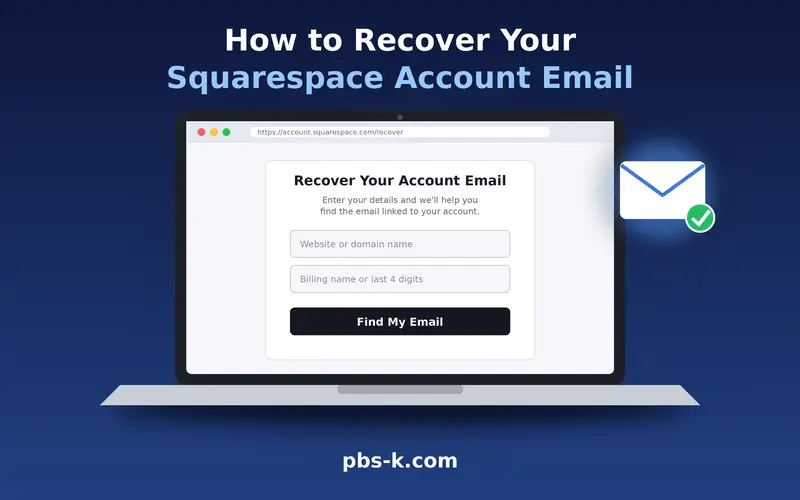
Sometimes, the problem is not your password. You may have forgotten which email address you used to create your Squarespace account.
Squarespace provides account recovery options to help users identify their login information.
To get started:
- Visit the official Squarespace login page.
- Click Can’t log in?
- Look for the account email recovery option.
- Follow the instructions provided.
- If you have added a recovery phone number, check whether account recovery by text message is available.
You can also try searching your personal email accounts for older Squarespace messages, such as subscription confirmations, billing notifications, or website setup emails.
These messages may help you identify the email address connected to your account.
How to Login to a Squarespace Website as a Contributor
Not everyone who accesses a Squarespace website is its owner. Website owners can invite other people to help manage their sites.
These people are commonly known as contributors.
If someone has invited you to work on a Squarespace website, you generally need to accept the invitation before accessing the site.
Follow these steps:
- Open the invitation email sent by the website owner.
- Follow the invitation instructions.
- Create or sign in to your Squarespace account as requested.
- Use the email address associated with your invitation.
- Open your Squarespace account dashboard.
- Select the website you have been invited to manage.
Your available permissions depend on the role assigned by the website owner.
For example, an administrator may have broader management permissions than someone invited only to edit website content.
If the website does not appear in your dashboard, ask the owner to confirm that the invitation was sent to the correct email address and that your contributor access is active.
Common Squarespace Login Problems and How to Fix Them
Even when you enter the correct website address, you may occasionally experience problems signing in.
The cause could be an incorrect password, an unsupported login method, browser settings, or a temporary service issue.
Here are some common problems and their possible solutions.
1. Incorrect Email Address or Password
If Squarespace displays an incorrect username or password message, first check your login details.
Try these steps:
- Check your email address for spelling mistakes.
- Make sure Caps Lock is not enabled.
- Confirm that you are using the correct account password.
- Try your original social login method.
- Reset your password if you cannot remember it.
2. Google or Social Login Is Not Working
If you cannot access your account through Google, Apple, or Facebook, make sure you are selecting the same account you used when registering.
A different social account may not be connected to your Squarespace profile.
You can also try another browser or use an available email-and-password login method.
3. Squarespace Dashboard Is Not Loading
Sometimes, the login process works, but the dashboard does not load correctly.
Possible solutions include:
- Refreshing the browser page.
- Closing unnecessary browser tabs.
- Updating your browser.
- Opening Squarespace in a private or incognito window.
- Trying another browser or device.
- Checking your internet connection.
Also make sure cookies and JavaScript are enabled where required.
4. Two-Factor Authentication Is Not Working
Squarespace may ask for additional verification when two-factor authentication (2FA) is enabled.
Depending on your account settings, this may involve a passkey, an authentication app, or a text message.
If you cannot receive or enter your verification code:
- Check that your phone has an internet or cellular connection.
- Confirm that your phone number is correct.
- Make sure your authentication code has not expired.
- Check that your device’s time is set correctly.
- Use a saved backup code if you have one.
If you have lost access to your verification method and do not have backup codes, contact Squarespace Support for assistance.
5. Squarespace Says Your Account Cannot Be Found
An account-not-found error may occur when you try to sign in using an email address or social account that is not connected to your Squarespace profile.
To resolve this:
- Check whether you are using the correct email address.
- Try the Google, Apple, or Facebook account you originally used.
- Review your older Squarespace emails for account information.
- Use the account recovery options if necessary.
If you still cannot identify the correct account, contact Squarespace Support.
6. Browser Cookies or Extensions Are Causing Problems
Browser settings can interfere with Squarespace login and website management.
Cookies are particularly important because Squarespace uses them to maintain account sessions.
Try enabling cookies, temporarily disabling extensions that may interfere with authentication, and clearing your browser cache.
Then reopen the official login page and try again.
7. Squarespace Login Page Is Not Working
If the login page itself is unavailable, the problem may be temporary.
Check your internet connection and try opening the page in another browser.
You should also visit the Squarespace Status page to check whether the company has reported an outage affecting its services.
How to Keep Your Squarespace Account Secure
Your Squarespace account may provide access to important website information, customer-related content, domains, and business settings.
Keeping your login credentials secure is therefore important.
Consider following these practices:
- Use a strong password: Choose a unique password that you do not use for other websites.
- Enable two-factor authentication: Add another layer of protection through a supported verification method.
- Protect your email account: Your registered email address may be needed for account recovery.
- Avoid shared passwords: Invite other users through Squarespace contributor permissions instead of sharing your personal login details.
- Use trusted devices: Avoid entering your credentials on unfamiliar or public computers.
- Review account activity: Check for unfamiliar login activity and connected applications when available.
- Log out of shared devices: Always sign out when using a computer that other people can access.
These precautions can help reduce the risk of unauthorized access.
Conclusion
Learning how to login to Squarespace is simple once you know where to find the official login page and which authentication method to use.
Visit Squarespace.com/login, enter your registered email address and password, or choose your original social login option. After signing in, you can access your account dashboard to manage websites, domains, subscriptions, and other settings.
If you cannot access your account, try resetting your password, recovering your email address, checking your two-factor authentication method, or troubleshooting your browser.
For additional help, use the official Squarespace Help Center to find account recovery instructions and contact support.
FAQs
How to Login to Squarespace?
Visit Squarespace.com/login, enter your registered email address and password, and click Log In. You can also use Google, Apple, or Facebook if you originally registered through one of these services.
Where Is the Squarespace Login Page?
The official Squarespace login page is https://www.squarespace.com/login. You can use it to access your account from a computer or mobile browser.
How Do I Access My Squarespace Website Dashboard?
Visit https://account.squarespace.com/ and sign in. Your account dashboard provides access to your websites, domains, subscriptions, and account settings.
Can I Login to Squarespace With Google?
Yes. Squarespace supports Google login. Select the Google sign-in option on the login page and choose the Google account connected to your Squarespace profile.
How Do I Login to Squarespace on My Phone?
Open the Squarespace mobile app or visit the login page through your phone’s browser. Enter your account credentials or use your original social login method.
What Should I Do If I Forget My Squarespace Password?
Visit the Squarespace login page, select Can’t log in?, and follow the password recovery instructions. Squarespace will send a recovery email to your registered address.
Why Can’t I Log Into My Squarespace Account?
Common reasons include an incorrect password, an unrecognized email address, an incorrect social login account, two-factor authentication problems, browser issues, or a temporary service interruption.
Can I Access Squarespace Without a Password?
Yes, if you use a supported social login method or passkey. However, you must still complete the required authentication and security checks.
Can Multiple People Login to the Same Squarespace Website?
Yes. A website owner can invite other people as contributors and assign appropriate permissions. Each contributor can use their own Squarespace account to access the website.
How Do I Log Out of Squarespace?
Open your account dashboard, click your profile picture or initials in the upper-right corner, and select Log Out.