
Introduction
If you are wondering, “why can’t I login to Paycor?”, the problem could be related to an incorrect username or password, an incomplete account registration, a browser issue, or a temporary service interruption. Sometimes, the login page works correctly, but your employer’s account settings or sign-in requirements prevent you from accessing your information.
Paycor is a human capital management platform that helps employees and businesses manage payroll, pay stubs, tax documents, schedules, and other HR tasks. If you cannot sign in, you may be unable to access important employment information when you need it.
The good news is that many login problems can be resolved with a few simple checks. Start by confirming that you are using the correct login page and credentials. If that does not work, try recovering your username, resetting your password, checking your browser, or contacting your employer’s HR department.
This guide explains the most common reasons Paycor login fails and provides practical steps to help you regain access safely.
Why Can’t I Login to Paycor?
There are several possible reasons you cannot sign in to your Paycor account. Identifying the exact problem can help you avoid unnecessary password resets or repeated login attempts.
Here are the most common causes.
1. Incorrect Username or Password
One of the first things to check is whether you entered the correct username and password. A small typing mistake can prevent you from accessing your account.
For example, your browser might automatically fill in an old password, or you might accidentally enter a personal email address instead of the username associated with your Paycor account.
Try these steps:
- Check your username for spelling mistakes.
- Make sure Caps Lock is not enabled accidentally.
- Remove any extra spaces before or after your credentials.
- Confirm that your browser is not filling in outdated login information.
- Enter your password carefully instead of relying on autofill.
Paycor’s login page may allow your email address to serve as your username in certain situations, including some single sign-on arrangements. However, this does not mean every account uses an email address as its username.
If you are unsure which username to use, follow Paycor’s username recovery process rather than repeatedly guessing.
2. You Forgot Your Paycor Password
If you cannot remember your current password, you may need to reset it.
Paycor provides account recovery options for users who cannot access their accounts. The exact process may depend on your sign-in setup.
To get started:
- Visit the official Paycor website.
- Select the sign-in option.
- Open the account recovery or password reset option available on the login page.
- Follow the instructions and provide the requested account information.
- Complete any identity verification steps.
- Use the recovery instructions to establish a new password.
If the reset process asks for your username and email address, enter the details associated with your account. Check your email for the next steps, including your spam or junk folder if necessary.
Once you have changed your password, return to the login page and enter the updated credentials.
Important: Never share your password or verification code with someone who claims they can fix your account. Use Paycor’s official website and support channels.
3. Your Paycor Username Is Incorrect or Forgotten
A forgotten username can cause the same login problem as an incorrect password.
This may happen if you registered for Paycor a long time ago, changed your email address, or use different usernames for work-related services.
Paycor’s support guidance describes a username recovery process that begins with the Forgot your username? option.
To recover your username:
- Open the Paycor sign-in page.
- Select Forgot your username?
- Enter the email address associated with your account.
- Follow the email verification instructions.
- Complete the available identity verification steps, such as a phone call, text message, or security questions, if offered.
- Review the recovery confirmation for your username.
The options displayed may vary depending on your account configuration.
If you no longer have access to the registered email address or phone number, contact your employer’s HR administrator for help updating your account details.
You can also consult Paycor’s official support page for account recovery guidance.
4. Your Account Has Not Been Registered
New employees sometimes try to log in before completing their Paycor registration.
If your employer recently introduced Paycor or you have just joined a company that uses it, you may need to create your account before signing in.
Paycor’s registration instructions explain that users may need a valid email address, personal information, and an employer-provided access code. The registration process also includes email verification and security setup.
If you have never used Paycor before, follow these steps:
- Ask your HR department whether your employee account is ready.
- Visit the official Paycor registration page through the instructions provided by your employer.
- Enter the requested information.
- Use the access code supplied for your organization or account.
- Verify your email address when prompted.
- Create your username and password.
- Complete the required security setup.
Do not use an access code found in an unrelated online guide. Your employer may provide a code specific to your registration process.
If registration fails or Paycor cannot find your information, ask HR to confirm that your employee details were entered correctly and that you have the appropriate access.
5. Paycor Is Experiencing a Technical Problem
Sometimes, the problem is not your account at all. Paycor may be experiencing maintenance, a temporary service disruption, or a technical issue affecting its website or a particular feature.
Possible symptoms include:
- The login page does not load.
- The website displays an error message.
- The sign-in process gets stuck.
- You receive a timeout message.
- The website opens, but your dashboard does not appear.
- Both the website and app have trouble connecting.
First, check Paycor’s official website and any relevant service-status information available for the product you use.
Keep in mind that an operational status page for Paycor Recruiting does not necessarily confirm the status of every payroll or employee self-service feature. Different services can experience different problems.
If there is a confirmed service issue, wait for the provider to resolve it before repeatedly attempting to sign in.
If the login page loads normally for other users but not for you, continue with the browser and account troubleshooting steps below.
6. Your Browser Has a Cache or Cookie Problem
Your browser stores temporary website data to help pages load efficiently. Sometimes, outdated or corrupted cached data and cookies can interfere with a sign-in session.
If Paycor keeps reloading, displays a blank page, or returns you to the login screen, your browser may be part of the problem.
Try the following:
- Close the Paycor tab.
- Open a new browser window.
- Visit the official Paycor website again.
- Try signing in.
- If the problem continues, open a private or incognito window.
- If private browsing works, clear the browser’s cached files and Paycor-related cookies.
- Close and reopen the browser before trying again.
Remember that clearing cookies may sign you out of other websites. If you want to preserve other sessions, consider clearing only the relevant site data when your browser allows it.
You can also try a different supported browser or update your current browser to its latest version.
If Paycor works in one browser but not another, that is a useful clue that the issue may be related to browser settings or stored website data rather than your password.
7. Your Internet Connection Is Unstable
An unreliable internet connection can prevent the Paycor login page from loading or interrupt the authentication process.
This is particularly likely if other websites are also loading slowly or displaying connection errors.
To test your connection:
- Open another familiar website.
- Restart your Wi-Fi router if your connection is unstable.
- Switch from Wi-Fi to a trusted mobile data connection, if available.
- Disconnect from a VPN temporarily if your organization’s security policy allows it.
- Try signing in again after the connection becomes stable.
If you are using a company-managed device or network, do not disable required security tools or bypass your employer’s network policies.
If other websites work normally and Paycor remains inaccessible, the issue may be specific to Paycor, your account, or your organization’s access configuration.
8. Your Employer Uses Single Sign-On
Some organizations configure Paycor access through single sign-on (SSO). This means employees may need to authenticate through their employer’s identity provider instead of using a separate, standalone password process.
If your company uses SSO, your normal Paycor username and password may not be the credentials you should enter on every login screen.
For example, an employee might need to select a company login option or sign in using a work email address and the employer’s authentication system.
If SSO is required:
- Open the Paycor login link supplied by your employer.
- Follow the company sign-in instructions.
- Enter your work credentials when prompted.
- Complete any required multifactor authentication.
- Contact your IT department if the authentication page returns an error.
If your employer recently changed its login process, an old bookmark may direct you to the wrong sign-in route.
Ask HR or IT for the correct login link instead of trying unrelated Paycor login pages.
9. Your Account Needs Assistance From HR
Some access issues cannot be resolved through ordinary troubleshooting.
For example, your account may not be fully configured, your employee details may need correction, or your organization may control certain access settings.
This can be especially relevant if:
- You are a new employee.
- Your employer recently changed payroll systems.
- You changed your name or email address.
- You cannot complete account verification.
- Your account is not recognized during registration.
- Other employees at your company can sign in, but you cannot.
Contact your employer’s HR department or designated Paycor administrator. Explain the error message and the steps you have already tried.
If the issue involves your organization’s single sign-on system, your IT team may also need to investigate.
Avoid creating multiple accounts to work around the issue. Duplicate registrations can complicate account recovery or make it harder to connect the correct employee information.
How to Fix Paycor Login Problems Step by Step
If you are unsure which cause applies to your situation, follow this troubleshooting sequence.
Step 1: Open the Correct Paycor Website
Start at Paycor.com and use its sign-in option, or use the login link provided by your employer.
Check the website address before entering your credentials. Avoid sponsored search results, unfamiliar third-party login pages, or links sent by unexpected messages.
If your company uses a special SSO link, confirm it with HR or IT.
Step 2: Check Your Login Details
Carefully enter your username and password.
If you have multiple work accounts, make sure you are using the correct one. Your Paycor username may differ from the credentials you use for email, scheduling, training, or other workplace systems.
If you are unsure of your username, use the official recovery option.
Step 3: Reset Your Password if Necessary
If your username is correct but your password is rejected, use the password recovery process.
Follow the instructions provided for your account and create a new password that you do not reuse on unrelated services.
Do not keep guessing passwords if the login page continues to reject them.
Step 4: Try a Private Browser Window
Open a private or incognito window and navigate to the official login page.
If you can sign in successfully, the issue may involve your regular browser’s cache, cookies, or extensions.
Clear the relevant site data or try disabling a problematic extension, provided doing so does not conflict with your organization’s security policies.
Step 5: Test Another Browser or Device
If the login page still fails, try another supported browser or a trusted device.
This can help you determine whether the problem is isolated to one browser, device, or network.
If Paycor works elsewhere, update your original browser and check its settings.
If it fails across multiple devices and networks, an account-specific or service-side issue becomes more plausible.
Step 6: Check the Mobile App
If you normally use the Paycor mobile app, test whether the website works in your mobile browser or on a computer.
If the website works but the app does not, check for an available app update, close and reopen the app, and verify that your internet connection is stable.
If necessary, restart your device. Reinstalling the app can be a later option, but make sure you know your login details and can complete any required verification first.
Paycor’s support information states that the mobile app can be accessed using current Paycor.com credentials or through the applicable registration process.
Step 7: Contact the Appropriate Support Team
If none of these steps works, contact HR or Paycor support rather than continuing to troubleshoot blindly.
Explain whether the problem occurs before or after you enter your credentials. Include the exact error message, the device you are using, and whether the website or mobile app is affected.
This information can help the support team identify the cause more efficiently.
Common Paycor Login Errors and What They Mean
The exact wording of an error can help you decide what to do next. The table below offers general guidance, not a guarantee that every message has the same cause.
| Problem you see | What it may indicate | What to try |
|---|---|---|
| Incorrect username or password | Mistyped or outdated credentials | Check details or recover your username |
| Password reset fails | Account details or verification may not match | Recheck your information and contact HR if needed |
| Verification code not received | Email, phone, delivery, or account settings issue | Check spam, confirm contact details, and request another code if offered |
| Page keeps loading | Browser, network, or service issue | Try private browsing and check your connection |
| Blank login page | Browser compatibility or temporary technical problem | Try another browser and reopen the site |
| Account not found | Incorrect account details or incomplete registration | Confirm registration and employee information with HR |
| Company sign-in fails | Possible SSO or employer identity-provider issue | Contact your IT department |
| App will not open | App, device, network, or service problem | Update the app and test the website |
Do not assume that every failed login means your account has been locked. Read the message carefully and follow the instructions shown on the actual login page.
What to Do if Paycor Says Your Account Is Locked
An account lockout can occur when a security system detects repeated unsuccessful login attempts. However, the exact conditions depend on the account and authentication setup.
If Paycor explicitly tells you that your account is locked, stop attempting different passwords.
Instead:
- Read the lockout message carefully.
- Follow any instructions about waiting or account recovery.
- Use the official password recovery process if it is available.
- Contact your HR administrator if you cannot regain access.
- Contact Paycor support if further assistance is needed and your support route permits it.
Do not assume that waiting a fixed number of minutes will always unlock the account. The process may vary.
If you suspect someone else has tried to access your account, tell the appropriate support team and change your password through the official recovery process when possible.
Why Is Paycor Not Working on My Phone?
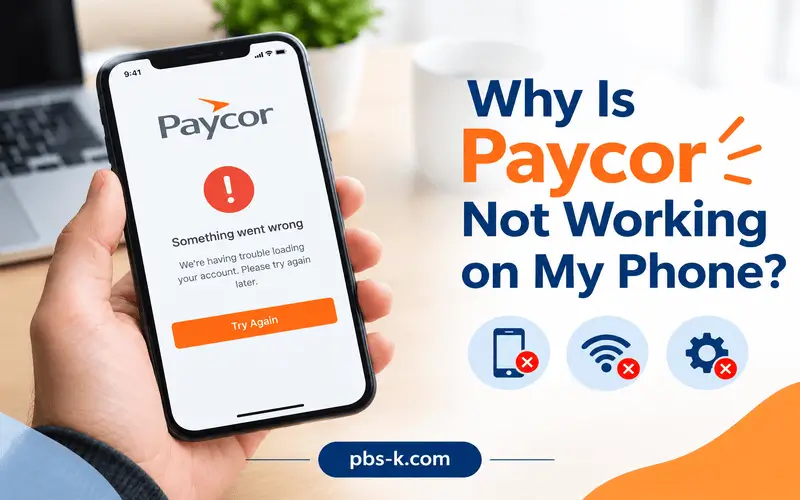
Paycor may work on a computer but fail on your phone because of app issues, browser settings, connectivity problems, or differences in the sign-in process.
Try these fixes in order:
- Check whether your phone has a stable internet connection.
- Update the Paycor app through your device’s official app store.
- Close and reopen the app.
- Restart your phone.
- Try accessing Paycor through your mobile browser.
- Confirm that you are using the correct username and password.
- Complete any required security verification.
If you recently changed your Paycor password, make sure the app is not using an outdated saved password.
If the mobile website works but the app continues to fail, contact Paycor support or your employer’s administrator for help with the app-specific problem.
If neither the app nor the website works, investigate your account credentials, employer sign-in setup, and possible service interruptions.
How to Contact Paycor Support
When basic troubleshooting does not solve the problem, the next step is to contact the right support channel.
Paycor’s official Services and Support page provides help for employees and administrators. Its published guidance lists 855-565-3285 as a customer support number. The page lists phone support hours as Monday through Friday, 8 a.m. to 8 p.m. Eastern Time for payroll and 8 a.m. to 6 p.m. Eastern Time for other products. Check the current support page for any changes before calling.
The best contact depends on your situation.
Contact Your Employer’s HR Department
Employees should generally start with their employer’s HR administrator when the problem involves registration, employee information, account setup, or access to the organization’s Paycor account.
HR may be able to confirm whether your account has been configured correctly or direct you to the right administrator.
Contact Your IT Department
If your employer uses single sign-on, company-managed devices, or an internal identity provider, your IT team may need to investigate the authentication problem.
This is particularly useful when the error mentions company credentials, access permissions, or multifactor authentication.
Contact Paycor Customer Support
Paycor support is another option if the problem persists or appears to involve the platform itself.
Paycor provides support resources, including its knowledge base and support center. Some support options are intended for registered account administrators, so employees may need to work through their employer.
Before contacting support, prepare the following information:
- The error message you see.
- Whether you are using the website or mobile app.
- Your device and browser type.
- Whether password recovery works.
- Whether other employees are experiencing the same problem.
- The approximate time the issue started.
Never include your password, full Social Security number, or verification codes in an ordinary support email or public forum.
How to Keep Your Paycor Account Accessible
Once you regain access, a few habits can help reduce future login problems.
Keep Your Recovery Information Updated
Make sure your registered email address and phone number are current, following your employer’s procedures. This can make it easier to complete identity verification and recover your username.
Store Your Credentials Securely
Use a reputable password manager if permitted by your organization. Avoid saving your password on shared or public computers.
Use the Correct Login Link
Bookmark the login page you have verified through Paycor or your employer. If your company changes its sign-in process, update the bookmark.
Avoid Repeated Password Guessing
Repeated attempts with incorrect credentials can trigger additional security checks or a lockout. Use the recovery process when you are unsure of your password.
Keep Your Browser and App Updated
Updates can improve compatibility, security, and reliability. Install them through trusted sources and follow your employer’s device policies.
Protect Your Verification Codes
Never share authentication codes with unexpected callers or messages. If a verification request appears when you are not trying to sign in, investigate it rather than approving it automatically.
FAQs
Why can’t I login to Paycor even with the correct password?
You may be using the wrong username, experiencing a browser or network problem, or encountering an employer-specific sign-in requirement. A temporary technical issue is another possibility. Confirm your username, try a private browser window, and check whether your employer uses single sign-on.
How do I reset my Paycor password?
Visit the official Paycor login page and select the available password recovery option. Follow the instructions to verify your identity and establish a new password. If you cannot complete recovery, contact your employer’s HR administrator or the appropriate Paycor support channel.
How do I recover my Paycor username?
Select Forgot your username? on the sign-in page if the option is available. Enter the email address associated with your account and complete the requested verification steps. If you no longer have access to your registered contact information, ask HR for help.
Is Paycor down right now?
A login problem does not necessarily mean Paycor is down. Check official Paycor communications and the status information relevant to your particular service. A status page for one Paycor product may not cover every payroll or employee login feature.
Why is my Paycor account locked?
Repeated unsuccessful login attempts or security checks may result in a lockout. Follow the instructions displayed on the login page, use account recovery if available, and contact HR or Paycor support if the issue continues.
Why can’t I log in to Paycor on my phone?
The problem could involve an outdated app, an unstable connection, saved credentials, or a mobile-specific error. Update the app, restart it, check your internet connection, and test Paycor in your phone’s browser.
Why does Paycor keep sending me back to the login page?
This may happen because of browser cookies, an expired sign-in session, or an authentication issue. Try a private window, clear the relevant site data, or use another supported browser. If the problem continues, contact your administrator.
Can I access Paycor without registering?
If your employer requires an employee account, you generally need to complete the applicable registration process before accessing employee self-service features. Ask HR for the correct registration instructions and any required access code.
Who should I contact if I still cannot access Paycor?
Start with your employer’s HR administrator for employee account setup or registration issues. Contact IT for company single sign-on problems. For platform-related problems, consult Paycor’s official support resources or contact its support team through the appropriate channel.
Conclusion
If you are asking, “why can’t i login to Paycor?”, start by checking your username and password, confirming that you are using the correct login page, and making sure your account registration is complete. If those details are correct, try browser troubleshooting, test your internet connection, and check for a possible service interruption.
For problems involving account recovery, employee information, or company sign-in settings, contact your HR administrator or IT department. If the issue appears to involve Paycor itself, use the official support resources.
The most effective approach is to identify where the sign-in process fails, try the relevant fix, and seek help when the issue requires account-specific access.