
Introduction
If you are wondering, how do I login to my Gusto account, the process is straightforward once you know which email address and sign-in method to use. Gusto is a payroll and HR platform that helps businesses manage payroll while giving employees access to information such as pay stubs, tax documents, and personal employment details.
To get started, visit the official Gusto sign-in page. Enter the email address associated with your account, provide your password or use an available passkey, and complete any required identity verification.
The steps may differ slightly depending on whether you are an employee, employer, contractor, or accountant. If you have never used Gusto before, your employer may need to invite you and help you complete the initial setup.
This guide explains how to log in using a computer or mobile device, recover your account, resolve common login errors, and find help when you cannot access your profile.
How Do I Login to My Gusto Account?
Follow these steps to access your existing Gusto account through a web browser.
- Open the official login page. Visit app.gusto.com in your browser.
- Enter your email address. Use the personal email address connected to your Gusto profile.
- Enter your password. If you have forgotten it or have not created one, select the password recovery option.
- Complete any security check. Follow any CAPTCHA or other verification instructions shown on the screen.
- Select Sign In. Continue with the available sign-in instructions.
- Complete additional verification. If requested, enter your two-step verification code, approve an authorization request, or use your configured passkey.
After successful authentication, Gusto should open the account or profile associated with your login details.
Important: Use the official Gusto website rather than an unfamiliar login link from a text message, email, or search result. This is especially important because your account may contain personal, employment, and payroll information.
How to Log In to Gusto as an Employee
Employees generally use Gusto to review pay information, complete onboarding tasks, access available tax forms, and update permitted personal details.
However, you cannot access an employee profile until your employer has added you to Gusto and provided the required account setup information.
Step 1: Check Your Welcome Email
When your employer adds you to Gusto, you should receive an invitation or welcome email. Open it and follow the instructions to begin setting up your account.
If you cannot find the message, check your spam and junk folders. You can also ask your employer to confirm the email address they entered and resend the invitation if necessary.
Step 2: Use the Correct Email Address
Enter the same email address your employer used when creating your employee profile.
Using a different personal or work email address may prevent you from accessing the expected account. If you are unsure which address is registered, ask your employer to verify it.
Step 3: Complete Your Account Setup
If this is your first time using Gusto, follow the onboarding instructions. Depending on your employer’s setup and your circumstances, you may need to verify your email, create a password, enter personal information, complete payroll details, and review required employment forms.
Once your setup is complete and any required approval has been handled, you can use the sign-in page to access your profile.
Step 4: Find Your Employee Information
After signing in, look for the relevant sections of your account. Available features depend on your employer’s configuration and your role.
You may be able to:
- View current and previous pay stubs.
- Access available tax documents.
- Review payment and direct deposit information.
- Complete or review onboarding documents.
- Update certain personal details.
- Review available benefits information.
If a particular document or feature is missing, check with your employer or payroll administrator. Not every feature is available to every user.
How to Log In to Gusto as an Employer
Business owners and payroll administrators use Gusto to manage company payroll and related HR tasks.
To access your employer account:
- Go to the Gusto sign-in page.
- Enter the email address associated with your administrator profile.
- Enter your password or choose an available passkey.
- Complete any required verification steps.
- Open the company or administrator profile you need.
Once signed in, you can access the features permitted by your role and subscription.
If you work with multiple companies or have more than one Gusto profile, make sure you open the correct one before making changes. This is particularly important when reviewing payroll information or preparing a payment.
If you are a new business owner who has not created a Gusto account, you will need to follow the company’s account registration process instead of trying to sign in to an account that does not exist.
How to Log In to Gusto Using the Mobile App
If you prefer using your phone, you can access Gusto through its mobile app.
The exact screen layout may vary depending on your device and the app version, but the general process is similar to signing in through a browser.
- Open the Gusto mobile app on your phone.
- Enter the email address associated with your Gusto profile.
- Enter your password.
- Tap Sign In.
- Complete any requested two-step verification or passkey authentication.
If you cannot remember your password, use the Forgot Password option displayed on the sign-in screen and follow the recovery instructions.
Can You Use Gusto on a Phone Without the App?
Yes. You can visit the official Gusto sign-in page through a supported mobile browser. This can be useful if you do not want to install the app or are using a device where installing applications is not possible.
If the page does not display correctly, try updating your browser or opening the site in another supported browser.
For security, avoid saving login details on a public or shared device.
How to Reset Your Gusto Password
If you cannot remember your password, you usually do not need to create a new account. Gusto provides a password recovery process through its sign-in page.
Follow these steps:
- Visit the official Gusto login page.
- Select Forgot Password.
- Enter the email address associated with your Gusto profile.
- Select the option to send a reset link.
- Open your email inbox and find the password reset message.
- Follow the link and complete the instructions to set a new password.
- Return to the sign-in page and log in with your updated credentials.
If the email does not arrive immediately, wait a few minutes and check your spam or junk folder.
Make sure you entered the correct email address. If you use several email accounts, check the address your employer registered with Gusto.
Resetting your password also signs you out of active Gusto sessions on the web and mobile app, according to Gusto’s help documentation.
What If You Never Created a Gusto Password?
If you are a new employee and have not finished setting up your account, you may be able to use the Forgot Password option to begin the password setup process.
First, confirm that your employer has added you to Gusto and that you are using the correct email address. If the account has not been created or the invitation has not been sent, contact your employer for assistance.
How to Find Your Gusto Login Email
Forgetting which email address you used can be just as frustrating as forgetting your password.
If you cannot remember your Gusto login email, start by checking any welcome messages or previous notifications from Gusto. You can also ask your employer or payroll administrator to confirm the email address on your profile.
Gusto also provides a Forgot Email option on its sign-in page for eligible users.
The general process is:
- Open the official Gusto sign-in page.
- Select Forgot Email, if the option is available.
- Enter the phone number associated with your two-step verification.
- If necessary, choose another verification method.
- Select your role and follow the identity verification instructions.
The available recovery options may vary. Gusto may show only part of the email address associated with your profile after verifying your identity.
If you no longer have access to your registered phone number, follow the alternative verification instructions or contact Gusto support.
Do not guess repeatedly at different email addresses. Confirming the correct address first can save time and help you avoid unnecessary login attempts.
How to Complete Gusto Two-Step Verification
Gusto may ask for an additional security check after you enter your email and password. This helps confirm that the person attempting to sign in is authorized to access the account.
Depending on your settings and device, the process may involve a verification code, an authorization link, or a passkey.
If You Receive a Verification Code
Enter the code exactly as instructed on the login screen. If the code has expired, request another one if that option is available.
Never share your verification code with someone who contacts you unexpectedly and claims they need it to fix your account.
If You Use a Passkey
A passkey lets you authenticate with a supported device or security method, such as Face ID, Touch ID, or a security key.
If your passkey is not working, check that you are using a device where it is available. You may also be able to choose the password sign-in option and complete the normal verification process instead.
If You Have a New Phone Number
If your old number is no longer available, use the alternative verification options displayed by Gusto.
You may need to complete additional identity checks before updating your verification details. If the available options do not work, contact Gusto through its official support channels.
For more detailed instructions, consult Gusto’s two-step verification help guide.
Common Gusto Login Problems and How to Fix Them
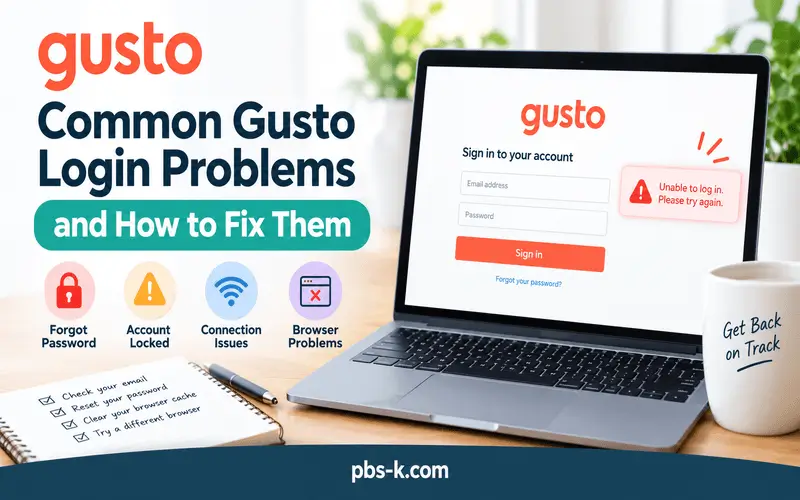
Sometimes the sign-in process fails even when you believe your details are correct. The following troubleshooting steps can help you identify the problem.
Incorrect Email or Password
Double-check your spelling and make sure you are using the email address associated with your Gusto account.
If your password is incorrect or you cannot remember it, use the password reset process instead of repeatedly guessing.
If you use a password manager, check that it has not filled in credentials for another account.
Password Reset Email Is Missing
If you requested a reset link but did not receive it:
- Wait a few minutes.
- Check your spam and junk folders.
- Verify the email address you entered.
- Confirm with your employer which email address is registered, if necessary.
- Request another reset link if the option is available.
A reset email may not be sent if the address you entered is not connected to a Gusto profile.
Your Gusto Account Is Locked
Entering an incorrect password too many times can lock your account.
Gusto’s documented recovery process involves checking the email associated with your account for an account-unlock message. Follow the instructions in that message and reset your password if required.
If you cannot find the email, check your spam folder and confirm that you are checking the correct inbox.
If the account remains locked, contact Gusto support for further assistance.
The Verification Code Does Not Arrive
If you are waiting for a text message or verification code, confirm that your registered phone number is still correct and that your device can receive messages.
If the screen provides a resend option, you can try it. If you use an authenticator app, check that you are following the correct instructions for that app.
If you changed phones, lost access to your old number, or cannot complete verification, use Gusto’s alternative identity verification process.
The Login Page Will Not Load
If the sign-in page does not open or appears stuck, try these steps:
- Check that your internet connection is working.
- Reload the official login page.
- Open the page in a different supported browser.
- Update your browser if an update is available.
- Temporarily disable browser extensions that may interfere with the page.
- Try again in a private or incognito window.
If the problem continues, it may require further investigation by Gusto support.
You See the Wrong Account or Company
Some users have more than one Gusto profile, such as an employee profile and an administrator profile. Others may have accounts connected to different companies.
Check which email address you used to sign in. If the expected profile is not visible, look for the account-switching option in your profile menu.
If the accounts use different email addresses, you may need to sign out and sign back in with the email connected to the other account.
Your Employer Has Not Invited You
If you are a new employee and cannot log in, the issue may not be your password.
Your employer must first add you to Gusto and provide access. Ask your employer or payroll administrator to confirm that your account has been created and that the invitation was sent to the correct email address.
Can You Log In to Gusto After Leaving a Job?
Yes. According to Gusto’s help documentation, people who were paid through Gusto can continue to access their Gusto profiles and pay records after leaving a company.
This can be helpful if you need to find an old pay stub or retrieve an available tax document after changing jobs.
Use the same email address and sign-in method associated with your existing profile. If you cannot log in, try recovering your password or identifying the correct email address.
If your former employer used Gusto but you cannot find your profile, contact the employer or use Gusto’s official account recovery instructions.
Access to your profile does not mean you can continue using every feature available to current employees or administrators. Your available information and permissions may depend on your profile and the records maintained in Gusto.
How to Switch Between Gusto Accounts
If you use Gusto for more than one company or have multiple profiles, you may need to switch accounts after signing in.
On a web browser, open your profile menu and look for an option such as Switch Company or Switch to Employee Profile, depending on your account.
In the mobile app, open the profile menu and look for Switch Account.
Choose the correct profile and continue with the instructions shown on the screen. If the account you need is missing, confirm whether it uses another email address and ask the relevant employer to check your account details.
Before reviewing payroll information or making changes, verify that the correct company and profile are selected.
How to Contact Gusto Support for Login Help
If you have tried the recommended recovery steps and still cannot sign in, use Gusto’s official Help Center.
Gusto offers support options that can include chat, a callback, or email, depending on availability and your issue.
If you can sign in, you can generally access help from the support icon on the website or through the help section in the mobile app. If you cannot sign in, start with Gusto’s dedicated sign-in troubleshooting guide.
Before contacting support, prepare the following information:
- The email address you believe is linked to your account.
- A clear description of the login error.
- Whether the problem involves your password, email, verification code, or account access.
- The device and browser or app you are using.
Never send your password or a one-time verification code in an ordinary email or chat message. Use the verification process provided by Gusto.
For your protection, make sure you are using the contact options listed on Gusto’s official website.
Tips for Keeping Your Gusto Account Secure
Because Gusto can contain payroll records and personal information, secure sign-in habits are important.
Use a strong, unique password. Avoid reusing a password from another website. A password manager can help you keep track of different credentials.
Enable the available security features. Follow Gusto’s instructions for two-step verification or passkeys where supported.
Check the website address. Open the official Gusto sign-in page directly instead of entering your password on an unfamiliar website.
Be careful with shared devices. Avoid saving your password on public computers. Sign out when you finish and remove any saved login information if necessary.
Keep your email secure. Your registered email is often used for password recovery and account notifications, so protect access to it as well.
Respond carefully to unexpected requests. Do not approve unfamiliar sign-in prompts or share verification codes with other people.
These precautions reduce avoidable security risks, although no online account can be guaranteed to be completely free from risk.
Conclusion
If you are asking, how do I login to my Gusto account, start by visiting app.gusto.com and entering the email address associated with your profile. Complete the password or passkey step and follow any additional security instructions.
If you cannot sign in, use the official recovery options to reset your password, find your registered email, or resolve a verification issue. New employees should confirm that their employer has sent an invitation, while users with multiple profiles should check that they are opening the correct account.
For persistent problems, consult Gusto’s official Help Center rather than relying on unofficial login pages or sharing sensitive account information.
FAQs
How Do I Login to My Gusto Account?
Visit Gusto’s sign-in page, enter your registered email address and password, and complete any required verification. You can also use a supported passkey if one is configured.
How Do I Log In to My Gusto Account If I Forgot My Password?
Select Forgot Password on the sign-in page, enter your registered email address, and follow the reset instructions sent to your inbox. Check your spam folder if the message does not arrive.
How Do I Find My Gusto Username or Email?
Gusto uses the email address associated with your profile. Check your welcome email or ask your employer to confirm the registered address. You can also use the Forgot Email option on the sign-in page when available.
Can I Log In to Gusto Without an Account?
No. You need an existing account or an invitation to set one up. If you are an employee, ask your employer to add you to Gusto and send the required invitation.
Why Is My Gusto Account Locked?
Your account may be locked after too many incorrect password attempts. Check your registered email for an account-unlock message and follow the instructions. If that does not work, contact Gusto support.
Can I Access Gusto From My Phone?
Yes. You can use the Gusto mobile app or visit the sign-in page through a mobile browser. The available features and sign-in options may vary by device and account.
Can I Access My Gusto Pay Stubs After Leaving My Job?
Yes. Gusto states that users who were paid through its platform can continue accessing their profiles and pay records after leaving a company. Your available information depends on your profile and records.
Why Am I Not Receiving My Gusto Verification Code?
Check that you are using the correct registered phone number and that your device can receive messages. Try the available resend option or follow Gusto’s alternative verification instructions if your phone number has changed.
How Do I Contact Gusto if I Cannot Log In?
Start with the official Gusto sign-in troubleshooting guide. If you still cannot access your account, follow the support instructions provided by Gusto.